

You sit down for a critical video call, only for your audio to cut out and your screen to freeze. Meanwhile, someone in the next room is downloading a massive game update while the living-room TV streams 4K video. If your home network buckles every time the household gets busy, a new router starts to look very tempting.
In this article
For the past few years, Wi-Fi 6E has been the gold standard for home connectivity, opening up the clean 6 GHz band that relieved congestion on older networks. Now Wi-Fi 7 (officially IEEE 802.11be) is everywhere: in flagship phones, new laptops and a growing shelf of routers and mesh systems. So in the Wi-Fi 7 vs Wi-Fi 6E debate, is the newer standard worth paying for, or is your 6E setup still plenty?
We cut through the acronyms and lab-only speed claims to explain what Wi-Fi 7 actually changes, what you will notice in a real home office, and when it makes sense to stay put.
What Wi-Fi 7 Actually Adds
Wi-Fi 6E was a big leap because it added the 6 GHz band, effectively a brand-new, empty highway for your data. Wi-Fi 7 uses the same three bands but redesigns how traffic moves across them. According to the Wi-Fi Alliance, these are the features that matter most:
- Multi-Link Operation (MLO): Older generations make a device pick one band at a time. With MLO, a Wi-Fi 7 device can send and receive over multiple links, such as 5 GHz and 6 GHz, for higher throughput, lower latency and better reliability. If one lane backs up, traffic can keep flowing on another.
- 320 MHz channels: Wi-Fi 6E tops out at 160 MHz-wide channels. Wi-Fi 7 doubles that to 320 MHz, but only in the 6 GHz band and only in countries that allow it. Wider channels mean more data per transmission.
- 4K QAM: Wi-Fi 6E uses 1024-QAM. Wi-Fi 7 adds 4096-QAM, which the Wi-Fi Alliance says delivers up to 20% higher transmission rates. The catch: it needs a strong, clean signal, so you mostly see it close to the router.
- Multiple RUs and puncturing: Wi-Fi 7 can assign several resource units to one device and “punch out” a busy slice of a wide channel instead of abandoning the whole channel. That keeps speeds up in crowded apartments full of neighbouring networks.
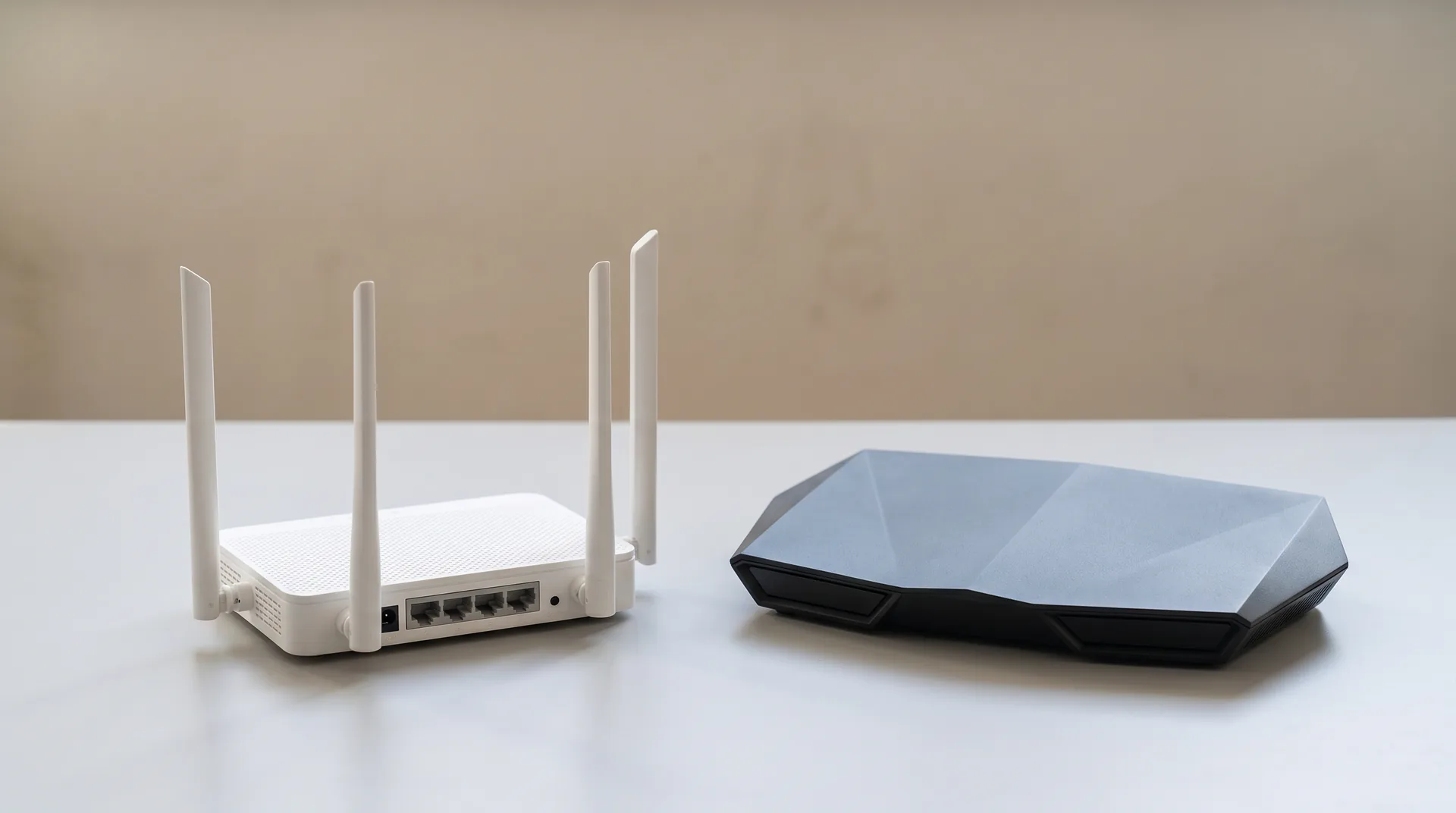
Wi-Fi 7 vs Wi-Fi 6E: Side-by-Side Comparison
Here are the key specifications next to each other. Theoretical maximums assume ideal lab conditions and more antennas than any phone or laptop has, so the device rows are the ones to watch.
| Wi-Fi 6E | Wi-Fi 7 | |
|---|---|---|
| Bands | 2.4 / 5 / 6 GHz | 2.4 / 5 / 6 GHz |
| Channel width | 160 MHz | 320 MHz (6 GHz) |
| Modulation | 1024-QAM | 4096-QAM |
| Multi-Link (MLO) | No | Yes |
| Peak speed* | ~9.6 Gbps | ~46 Gbps |
| Laptop link rate** | 2.4 Gbps | 5.8 Gbps |
| Real-world gain | Big jump from Wi-Fi 5 | Steadier under load |
| Devices | Widespread | Flagships, newer laptops |
| Routers | Mature, discounted | Budget to premium |
*Theoretical headline figures under ideal lab conditions. **Typical 2×2 laptop cards: Intel AX211 (Wi-Fi 6E) vs Intel BE200 at 320 MHz (Wi-Fi 7). Wi-Fi 7’s peak gains need 320 MHz on both router and device; Apple’s full Wi-Fi 7 support starts with iPhone 16 Pro and M5-generation MacBooks.
Speed: Big Numbers, Smaller Real Gains
The 46 Gbps figure is a theoretical maximum you will never see at home. The more useful numbers come from client hardware: Intel rates its Wi-Fi 7 BE200 card at a 5.8 Gbps maximum link rate using 320 MHz channels and 4K QAM, versus 2.4 Gbps for the Wi-Fi 6E AX211. Actual file-transfer speeds land well below those link rates, but the gap is real when both the router and the device support 320 MHz.
Not every Wi-Fi 7 device does. Apple’s published Wi-Fi specifications list a 160 MHz maximum and 2,400 Mbps link rate for its Wi-Fi 7 iPhones and Macs, the same peak as their Wi-Fi 6E predecessors. On those devices, the benefit comes mainly from MLO and better efficiency rather than raw speed.
Latency and Range
Wi-Fi 7 does not push signals farther than Wi-Fi 6E, because transmit power is capped by regulators, and 6 GHz still struggles through walls. Where it helps is consistency: MLO lets a device keep traffic moving on another band when one gets congested, which means fewer lag spikes on calls and in games. If you have dead zones, a better layout or mesh system will do more than a new standard; our guide on how to improve Wi-Fi coverage in your house covers the basics.
What You Notice in a Home Office
- Video calls: Fewer freezes when the rest of the household is streaming or downloading, thanks to MLO and smarter channel use.
- Large local transfers: Pulling video files from a NAS or backing up to a home server is where multi-gigabit Wi-Fi and 10 GbE router ports really pay off.
- Gaming and cloud apps: More stable ping under load. It won’t fix a slow internet connection, but it removes your Wi-Fi as the bottleneck.
- Everyday browsing: Honestly, no difference. Web pages, email and music streaming already run fine on Wi-Fi 6E.

Wi-Fi 7 Routers Worth a Look
We look at reliability, throughput, wired ports and ease of use. These three cover the main use cases. Specs are from the manufacturers’ own pages; prices change often, so check before you buy.
- Eero Max 7 (best mesh pick): Tri-band Wi-Fi 7 with two 10 GbE and two 2.5 GbE ports per node, wireless speeds up to 4.3 Gbps according to eero, and up to 2,500 sq ft of coverage per node. Setup through the app is quick, and it doubles as a Thread border router and Matter-compatible smart home hub. The catch is the price: $599.99 per node at eero’s store, and advanced users may miss granular settings.
- TP-Link Archer BE800 (best standalone router): A BE19000 tri-band router with two 10 Gbps ports (one is an SFP+/RJ45 combo for fiber), four 2.5 Gbps ports, a USB 3.0 port and EasyMesh support if you want to add nodes later. Lots of wired connectivity for a busy home office.
- Netgear Nighthawk RS700S (for power users): Another BE19000 tri-band router with a 10 Gbps internet port, a 10 Gbps LAN port, four Gigabit LAN ports and coverage rated up to 3,500 sq ft. Good if you have a multi-gig fiber line, though the remaining LAN ports are only Gigabit.
Whichever you choose, the router is only one part of the picture. Our primer on how to build your best home network explains how cabling, placement and switches fit together.
Who Should Upgrade (and Who Should Skip It)
Premium networking gear should be a considered purchase. For home-office workers, it comes down to your internet plan, your devices and how crowded your airwaves are.
Upgrade to Wi-Fi 7 if
- You pay for multi-gig internet: With a 2 Gbps or faster plan, an older router is the bottleneck, and Wi-Fi 7 plus multi-gig ports lets you actually use what you pay for.
- You live in a congested area: In apartments full of neighbouring networks, MLO and puncturing keep calls and uploads steadier.
- You move big files locally: NAS users, video editors and anyone backing up large projects over Wi-Fi will notice the extra headroom.
- Your router is Wi-Fi 5 or older: If you’re replacing it anyway, buy Wi-Fi 7. Your devices connect fine today and get the benefits as you upgrade them.
Skip this if
- Your plan is 500 Mbps or less: A new router can’t create bandwidth your provider doesn’t deliver; a good Wi-Fi 6E router already exceeds that.
- You just bought a Wi-Fi 6E mesh system: For browsing, calls and streaming, the gains won’t justify replacing it yet.
- Your devices don’t support Wi-Fi 7: Older laptops and phones connect to a Wi-Fi 7 router but see no Wi-Fi 7 features. Upgrade the router when your main work devices catch up.
Frequently Asked Questions
- Do I need new Ethernet cables for a Wi-Fi 7 router? Usually not for 2.5 or 5 Gbps: under the IEEE 802.3bz standard, those speeds run over existing Cat5e or Cat6 cable. For full 10 Gbps runs, use Cat6a (Cat6 works over shorter distances).
- Will my older iPhone work with a Wi-Fi 7 router? Yes. Wi-Fi 7 is backward compatible, so older devices connect on the bands they support. Per Apple, the full Wi-Fi 7 feature set requires iPhone 16 Pro or later (excluding iPhone 16e and 17e), MacBook Air with M5 or later, or MacBook Pro with M5 Pro or M5 Max or later.
- Is Wi-Fi 7 available everywhere? The 6 GHz band, and with it 320 MHz channels, is only usable where regulators allow it. Elsewhere, Wi-Fi 7 devices fall back to 2.4 and 5 GHz.
- Should I use one network name for all bands? Yes. Apple recommends a single SSID across 2.4, 5 and 6 GHz; otherwise devices may flag the network as having limited compatibility and fall back to 5 GHz.
The Verdict
Wi-Fi 7 is the better technology, and if you’re buying a router today, it’s the one to get. MLO makes connections steadier under load, and with a multi-gig plan and 320 MHz-capable devices, the speed gains are substantial. But if your Wi-Fi 6E setup covers your home and your plan sits under 1 Gbps, there’s no rush: the real-world difference for calls, browsing and streaming is modest.
Not sure where your network’s weak spots are? Start by mapping your coverage, then decide whether a new router or simply a better layout is the upgrade you need.
Affiliate disclosure: This post contains affiliate links. If you purchase through them, we may earn a commission at no extra cost to you. We only link products we’d recommend regardless.


