

This tech buying guide comes down to seven checks you can run on any gadget before you pay: the job it has to do, the total cost, how long it gets security updates, its privacy and parental controls, whether it works with what you own, the warranty and return terms, and whether the deal is real. Price alone tells you little about safety: a budget phone with a long, published update window can be a safer buy than a pricier one that stops getting patches sooner.
In this article
This post contains affiliate links. If you buy through them, I may earn a commission at no extra cost to you. How this works.
This guide is research-based. Specs and policies come from manufacturer and government pages, linked in each step so you can check the source yourself.
Tech buying guide: the 7 checks at a glance
| Check | Look for | Where |
|---|---|---|
| 1. The job | The one task it must do well | Your own list |
| 2. Total cost | Extras, fees, repairs | Product page, in the box |
| 3. Updates | A published security update period | Maker’s support page |
| 4. Controls | Profiles, time limits, app approvals | Maker’s parental controls page |
| 5. Fit | Ports, chargers, OS, accounts | Spec sheet |
| 6. Warranty | Length, exclusions, return window | Written warranty |
| 7. The deal | Exact model, real seller, safe payment | Listing vs maker’s specs |
Check 1: What job does the gadget need to do?
Write down the one task the device must do well before you open a product page. “Read for an hour a night” points to an e-reader; “read, take notes and watch video” points to a tablet. A long spec sheet is only useful when it answers that task, so cross out features you would not use in a normal week.
For a child’s device, add who will use it and how: a 5-year-old watching approved videos needs far less than a teen with school apps and messaging.
Check 2: What will it cost after the checkout price?
Add up everything the device needs to do that job, not just the sticker price:
- Accessories: a charger if none is in the box, a case, a screen protector, a USB-C adapter.
- Subscriptions: cloud storage, kids’ content services, or apps that move to a paid plan after a free year.
- Running costs: storage upgrades, replacement batteries and repairs over the years you plan to keep it.
A cheaper device that needs three accessories and a subscription can end up costing more than the next model up.
Check 3: How long will it get security updates?
This is the check that matters most for safety. A phone, tablet or smart-home device that no longer gets security updates keeps working, but known holes stay open. Look for a published update period on the maker’s support page before you buy.
Some makers state it clearly. Google says Pixel 8 and later phones get updates for 7 years, counted from when each model first went on sale on the US Google Store (Google Pixel update policy). In the UK, the PSTI regulations have required makers of connectable products to publish a minimum security update period since 29 April 2024 (GOV.UK), so a maker’s UK page can be worth checking when the US listing says nothing.
Buying an older model on sale? Count the years it has left, not the years since launch. A two-year-old phone on a 7-year policy has about five years of updates to go.
Check 4: Does it have the privacy and parental controls you need?
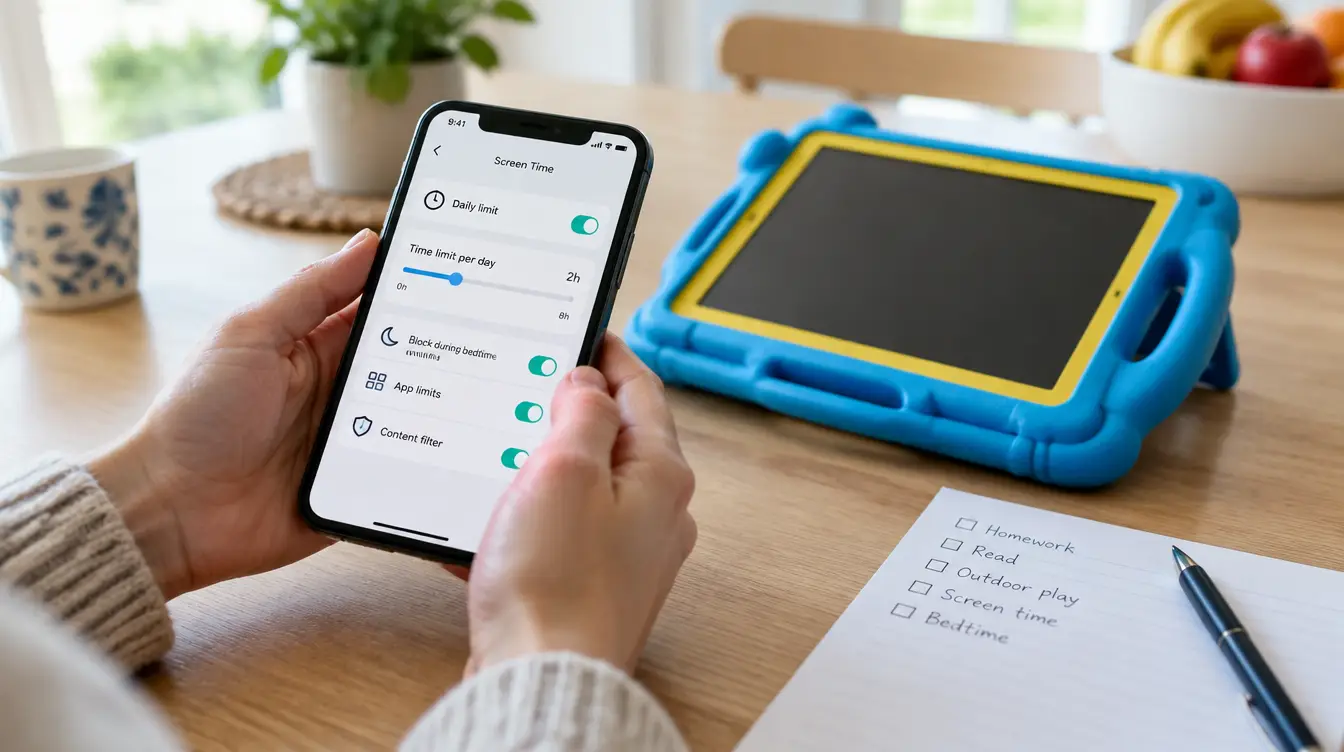
For a family device, check the controls before the specs. The basics worth having:
- Separate profiles so a child cannot reach your accounts, purchases or messages.
- Screen-time limits you can change from your own phone.
- App approval, so new downloads need your OK.
- Age filters you can loosen as the child grows.
Apple builds these into Screen Time, Google into Family Link, and Amazon into its Kids tablets. Controls work best alongside a clear family agreement on when and how the device gets used, not as a replacement for one.
Check 5: Will it work with what you already own?
Compatibility problems cost money after the fact. Check the ports (USB-C, Thunderbolt, HDMI), whether your existing chargers and cables fit, and which ecosystem the device expects. An Apple Watch, for example, needs an iPhone to set up and use.
For laptops, check how many displays and accessories you plan to connect; our USB-C dock guide explains what to look for. For anything wireless, check the Wi-Fi standard against your router; Wi-Fi 7 vs Wi-Fi 6E covers when a newer standard actually helps.
Check 6: What do the warranty and return terms actually cover?
Read the written warranty and the return window before you pay, including who pays for shipping on a return. Then decide on extras:
- Extended warranties: the FTC notes that one is not good value if it does not cover more than the warranty that came with the product. Check deductibles, fees and the cost per year of coverage (FTC: extended warranties).
- Refurbished: buy from the maker’s own program where you can. Apple includes its standard one-year limited warranty with every Certified Refurbished product, and refurbished iOS devices get a new battery and outer shell (Apple).
- Kids’ devices: some include accident cover. Amazon’s Kids tablets come with a two-year Worry-Free Guarantee (Amazon terms).
Check 7: Is the deal real?
Compare the exact model number and what’s in the box with the maker’s own spec page; a “deal” is often an older version or a regional model. Buy from the maker or a retailer you know, and treat countdown timers and prices far below everyone else as a reason to stop and check the seller.
Pay with a credit card where you can. If an order never arrives, the FTC says you can dispute the charge with your card company as a billing error; with a debit card you may not be able to get a refund for non-delivery (FTC: disputing charges). Keep the receipt and the listing.
Two budget picks that pass the checklist
Both picks score well on Check 3 or Check 4 without a premium price. Specs are from the manufacturers’ pages; prices change, so check the current one.
BEST BUDGET PHONE FOR LONG UPDATES
Google Pixel 9a
- Best for: anyone who wants a phone that stays patched for years without paying flagship prices.
- Key specs: 6.3-inch Actua display, Google Tensor G4 with Titan M2 security chip, 8 GB RAM, 128 or 256 GB, IP68, and “7 years of OS, security, and Pixel Drop updates” (Google Store specs).
- Skip it if: you use an Apple Watch or rely on iMessage with family. Staying on iPhone is the simpler choice.
BEST BUDGET TABLET FOR YOUNGER KIDS
Amazon Fire HD 10 Kids
- Best for: children aged 3 to 7 and parents who want controls they can manage from their own phone.
- Key specs: 10.1-inch 1920 x 1200 display, 32 GB plus microSD up to 1 TB, up to 13 hours of battery, kid-proof case, screen-time limits and app-request approval from the parent’s phone, a 2-year Worry-Free Guarantee and 1 year of Amazon Kids+ for new subscribers (Amazon product page).
- Skip it if: your child needs Google Play apps for school. Fire tablets use Amazon’s Appstore, and Amazon Kids+ becomes a paid subscription after the first year (Check 2).
Frequently asked questions
Does cheaper tech mean less safe?
No. Safety depends on security updates and the controls a device offers, not its price. A budget device with a long published update period and good parental controls can be the safer choice than an expensive one without them.
How long should a phone get security updates?
Long enough to cover the years you plan to keep it. Check the maker’s published support period before you buy; Google, for example, promises 7 years for Pixel 8 and later, counted from each model’s US launch.
Is refurbished tech safe to buy?
Yes, when it comes from the maker’s own program or a seller with a clear warranty, and the model still has years of updates left. Apple’s Certified Refurbished products carry the same one-year limited warranty as new ones.
Should I buy an extended warranty?
Only if it covers more than the included warranty at a fair cost per year. The FTC advises checking deductibles, per-repair fees and shipping costs, and whether the product is likely to need repairs at all.
Is it safer to pay by credit card or debit card online?
Credit card. If an order never arrives, you can dispute the charge as a billing error with the card company, while a debit card may not get you a refund for non-delivery, according to the FTC.
Final Verdict
The safest, smartest buy is rarely the most expensive one. It is the device that does your one job well, costs what you expected once accessories and subscriptions are added, keeps getting security updates for as long as you will use it, and comes with controls, a warranty and a seller you can trust. If a gadget fails Check 3 or Check 7, skip it, however good the price looks.
Next step: bookmark this tech buying guide, then pick the next gadget on your list and look up its security update period on the maker’s support page. It takes two minutes and rules out the most expensive mistake.
Affiliate disclosure: This post contains affiliate links. If you purchase through them, I may earn a commission at no extra cost to you. Full disclosure.