
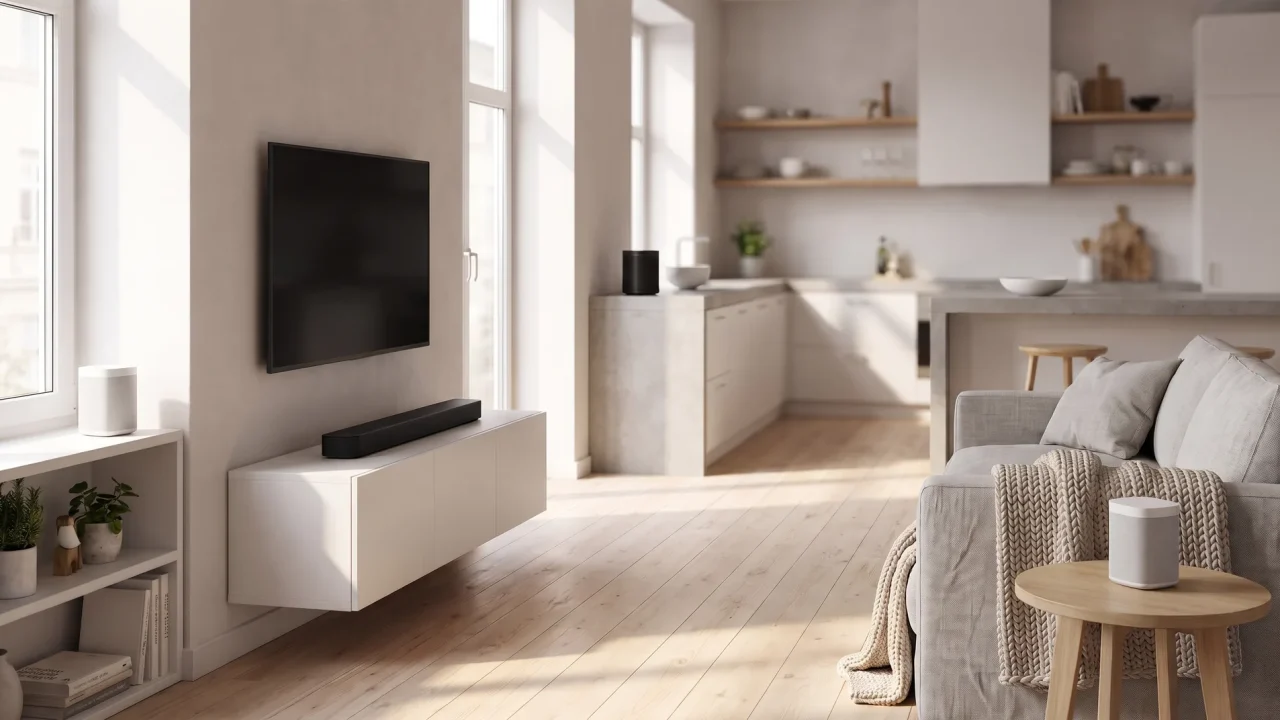
Multi-room audio sounds simple until the rooms actually sound different from each other, speakers drop out mid-song, or you realize the streaming service you chose is working against the hardware you paid for. This guide covers what actually matters for getting consistent, high-quality sound out of a Sonos multi-room system — whether you’re starting from scratch or optimizing what you already have.
In this article
These are practical steps with real tradeoffs explained, not a feature checklist.
Quick wins if you only have five minutes: run Trueplay on every speaker in its current location, give your system a solid network (Ethernet where it helps, strong 5 GHz Wi-Fi everywhere else), and turn on lossless playback in your streaming service if audio quality is your priority. Those three changes alone give most Sonos setups a noticeable improvement. Everything below explains why — and what to do next.
This guide is for you if:
- You own two or more Sonos speakers and want them to work better together
- You’re setting up a new Sonos system and want to avoid the common mistakes
- You’re a home office user who wants great-sounding background audio during long workdays
- You’re expanding an existing system with Era 100, Era 300, Arc Ultra, or one of the newer models
Skip this guide if:
- You have a single Sonos speaker, and it sounds fine — you’re done
- You only want better sound at your desk — our guide to desktop speakers is a better fit
- You use Sonos only for TV audio via HDMI — soundbar setup has its own logic
Step 1 — Build a Network Your Sonos Multi-Room System Can Trust
This is where most multi-room problems start. Sonos works well over Wi-Fi, but every speaker in a group has to stay in sync, so a weak or congested network shows up as dropouts, delays, and rooms falling out of step.
When wired Ethernet helps
Plugging a speaker into your router or a switch takes it off the airwaves entirely, which removes Wi-Fi interference from the equation for that speaker. You don’t need to wire everything — wire the speakers that are closest to your network gear or that give you trouble, and leave the rest on Wi-Fi.
One thing has changed with newer hardware. Older Sonos products can build their own dedicated wireless network (SonosNet) when one product is wired. Arc Ultra, Era 100, Era 100 SL, Era 300, Move 2, Roam 2, Sub 4, and Sonos Play don’t use that dedicated network — they connect to your home Wi-Fi, or directly via Ethernet where supported (the Era speakers need Sonos’s USB-C Ethernet adapter). For a system built mostly from current speakers, your home Wi-Fi is the foundation, so it’s worth getting right.
A basic 5-port unmanaged network switch (an inexpensive option on Amazon) placed near your TV or main speaker gives you wired connection points without running cables across the house.
Wi-Fi tips for Sonos
If everything stays on Wi-Fi, a Wi-Fi 6 mesh system (Eero, Netgear Orbi, or similar) is the most reliable way to cover a whole home. Current Sonos speakers — Era 100, Era 300, Arc Ultra, Move 2, Sub 4, and the newer models — support Wi-Fi 6 on 5 GHz, while older products fall back to 2.4 GHz. To keep the signal clean:
- Mind the 2.4 GHz neighbors: microwave ovens, cordless phones, and baby monitors can all interfere with 2.4 GHz connections
- Fix dead zones first: a speaker at the edge of your coverage will drop out no matter how good the speaker is
- Stay off the guest network: guest networks usually isolate devices, so the app can’t see your speakers
If some rooms have weak coverage, our guide on how to improve Wi-Fi coverage in your house walks through router placement, mesh systems, and extenders.
Step 2 — Speaker Placement and Room Strategy
Placement affects sound quality more than most people realize, and Trueplay (covered in Step 3) can only compensate for so much.
Stereo pairs: the rules
- Same model only: two Era 100s can be paired; an Era 100 and an Era 300 can’t. The one exception is that speakers with microphones can pair with their SL version, such as Era 100 with Era 100 SL. Plan accordingly when buying.
- Spacing: Sonos recommends placing a stereo pair 8–10 feet apart, with your favorite listening position 8–12 feet from the speakers. Sitting closer adds bass; sitting farther back improves stereo imaging.
- Symmetry: keep both speakers at a similar height and distance from side walls so one channel doesn’t sound boomier than the other.
Soundbar placement for Arc Ultra, Beam, and Beam Ultra
- Center it: place the soundbar centered under (or just above) the TV
- Keep it in the open: don’t push it deep into a cabinet or shelf cubby — the side and front drivers need room to project
- Clear the ceiling path: Arc Ultra and the new Beam Ultra have up-firing drivers for Dolby Atmos height effects, so avoid a low overhang or shelf directly above them
Portable speakers (Move 2, Roam 2, Sonos Play)
Sonos portables use Automatic Trueplay: the speaker’s built-in microphones continuously adjust the sound for wherever it is. That makes placement flexible, but don’t tuck one into a corner — corners exaggerate bass and can make it sound muddy. A flat surface with a few inches of clearance around it works best. Automatic Trueplay needs the microphone switch turned on.
Step 3 — Run Trueplay the Right Way
Trueplay is Sonos’s room correction system. It measures how sound reflects off your walls, furniture, and ceiling and adjusts the speaker’s EQ to compensate — typically taming harsh reflections from hard surfaces like glass and tile, and tightening up bass. It genuinely works, but only if you use it correctly.
Quick tuning vs. advanced tuning
- Quick tuning (iOS and Android): uses the speaker’s own microphones. Available on Arc Ultra, Beam Ultra, Era 100, Era 100 Pro, and Era 300, including stereo pairs and full home theater setups.
- Advanced tuning (iOS/iPadOS only): you walk around the room with your iPhone or iPad while it measures with the phone’s microphone. It’s more precise and is the only option for most other Sonos speakers. Sonos keeps a list of Trueplay-compatible products and devices if you’re unsure which applies to yours.
- Automatic Trueplay: portables like Move 2, Roam 2, and Sonos Play tune themselves continuously.
No iPhone? Android users get quick tuning on supported models. For other speakers, borrow an iPhone or iPad for a few minutes — as long as the speakers stay put, you only need to tune once.
To run Trueplay: Sonos app → Settings → select the speaker → Sound → Trueplay → Trueplay Tuning, then follow the prompts. Advanced tuning takes about three minutes per room.
When to re-run Trueplay
- You move a speaker to a new spot
- You create or separate a stereo pair, or add a Sub or surrounds
- You significantly change the room — a large sofa, bookcase, or rug changes how it sounds
- The speaker suddenly sounds boomier or harsher than it used to
Keep in mind that Trueplay doesn’t fix bad placement; it optimizes within the constraints of where the speaker sits. Any EQ changes you make afterward are applied on top of the Trueplay tuning.
Step 4 — Group Rooms and Choose Your Streaming Service
Grouping and sync across rooms
When you group rooms, Sonos sends the same stream to every speaker in the group and keeps them playing in sync over your network. This is why network stability matters — a speaker with a weak connection is the one that drops out or falls behind.
To group speakers: in the Sonos app, open the Now Playing bar, tap the Grouping icon, check the rooms you want to play together, and tap Apply.
If you have four or more speakers grouped and notice drift or dropouts between rooms:
- Ungroup all speakers
- Restart the speaker that sounds off (unplug it for 10 seconds, then plug it back in)
- Re-group, starting with the speaker that performs best
- If problems persist, check that speaker’s Wi-Fi signal — it may need repositioning or a wired connection
Streaming quality on Sonos
The service you choose affects what your speakers can deliver. Sonos plays lossless audio up to 24-bit/48 kHz on the current Sonos app — anything marketed as higher than that won’t play at a higher resolution on Sonos.
| Service | Best quality on Sonos | Notes |
|---|---|---|
| Spotify | Lossless, up to 24-bit/44.1 kHz FLAC | Requires Premium; turn on Lossless in Spotify’s settings. Works in the Sonos app or via Spotify Connect |
| Apple Music | Lossless (ALAC) via the Sonos app | Turn Spatial Music off for the room in the Sonos app to get lossless |
| Amazon Music | Ultra HD, up to 24-bit/48 kHz | Native integration in the Sonos app |
| Qobuz | Hi-res FLAC, up to 24-bit/48 kHz | Native integration in the Sonos app |
For most listeners: any of these sounds excellent. Pick the one whose library and app you like — then make sure lossless is actually switched on, because it isn’t always the default.
S1 caveat: Spotify and Apple Music lossless aren’t available on older S1-only products or the S1 Controller app.
Spotify Connect vs. AirPlay — what’s actually different
- Spotify Connect (and the Sonos app): your phone is a remote control. The audio streams from the cloud directly to your speakers, so you can take a call, leave the house, or turn your phone off and the music keeps playing.
- AirPlay: your phone or Mac is the source and streams to the speakers over Wi-Fi. It’s convenient for any app, but if your device leaves the network, the music stops. For Apple Music lossless, play through the Sonos app rather than AirPlay.
For a home office setup, Spotify Connect or playing through the Sonos app is the better choice — it’s more stable and doesn’t tie up your work laptop or phone.
Step 5 — Stay Updated and Avoid Common Mistakes
Sonos updates the speakers automatically by default, which is the right setting for most people. Updates bring bug fixes and new features — Spotify and Apple Music lossless both arrived through software updates. If you’ve turned automatic updates off, or something isn’t working, check manually: Sonos app → Settings → System → System Updates. Update the Sonos app itself through the App Store or Google Play.
The mistakes that most often hurt sound quality:
- Placing a stereo pair too close together: squeeze them a couple of feet apart and the stereo image collapses toward the center. Aim for Sonos’s 8–10 feet where the room allows.
- Running Trueplay once and forgetting it: a moved speaker or a redecorated room means the tuning no longer matches the space. Re-run it.
- Using the guest network or a separate VLAN for Sonos: keep the speakers and the device running the app on the same network, or the app won’t find your system.
- Ignoring sub placement: the Sonos Sub 4 belongs on the floor, standing up or lying flat, with its opening unobstructed. A corner adds bass but can sound boomy — try a couple of spots and re-run Trueplay after each move.
- Trying to pair mismatched models: an Era 100 can’t be stereo paired with an older Play:1. Group them as separate rooms, or replace the older speaker if you want a true pair.
Next Steps for Your Sonos Home
Gear worth adding
If you’re ready to grow your Sonos system, here’s what works well and why:
- Sonos Era 100: the best entry point for adding a new room. Its USB-C port supports line-in with Sonos’s adapter (sold separately), and it supports quick tuning. The cheaper Era 100 SL drops the microphones.
- Sonos Era 300: for Dolby Atmos music in a room where spatial audio makes sense (living room, dedicated listening space). Overkill for a home office.
- Sonos Arc Ultra: the anchor for a home theater setup. Add a Sub 4 and a pair of Era speakers as surrounds when you’re ready.
- Sonos Sub 4: adds real low end to any setup. It’s not just for TV — it improves music playback in the room too.
- Sonos Move 2: the practical choice for a patio, kitchen, or any spot without a convenient outlet.
For network gear, a Wi-Fi 6 mesh router system is the single most impactful non-Sonos purchase for multi-room reliability.
Your action plan
- Start with network and placement before buying more gear — most problems are environmental
- Run Trueplay on every speaker in its current room (quick tuning on supported models, advanced tuning with an iPhone or iPad for the rest)
- Pick the right streaming service and confirm lossless is switched on
- Review your home network — our guide to building your home network setup covers the basics that keep every connected device, Sonos included, running smoothly
- Leave automatic updates on so you get fixes and new features as they ship
If your Sonos multi-room setup still has dropouts or sync issues after following these steps, the problem is almost always network or placement — not the speakers themselves. Sonos hardware is reliable; the setup around it is what makes the difference. Start with one room this week, and build from there.
Affiliate disclosure: This post contains affiliate links. If you purchase through them, we may earn a commission at no extra cost to you. We only link products we’d recommend regardless.


