
If your Mac keeps disconnecting from Wi-Fi, the cause is usually on the network side, not a broken Wi-Fi chip: a stale saved network, a rotating private Wi-Fi address, an expired DHCP lease, or router settings Apple specifically warns against. Work through the nine fixes below in order, because the first five take minutes and cost nothing, and only the last one involves buying hardware.
In this article
This post contains affiliate links. If you buy through them, I may earn a commission at no extra cost to you. How this works.
Every step below is based on Apple’s own support documentation for current macOS versions, linked in each section so you can check the source yourself.
Why does my Mac keep disconnecting from Wi-Fi?
Drops and reconnect loops almost always trace back to one of five causes:
- Saved network data is out of date after a router change, password change, or firmware update.
- Private Wi-Fi Address is rotating, so a router with MAC filtering or address reservations no longer recognizes the Mac.
- IP address problems: an expired or conflicting DHCP lease, or two devices both handing out addresses (double NAT).
- Router settings such as separate names per band, old WPA/TKIP security, or a hidden network.
- Interference and distance, including USB 3 hubs and docks sitting right next to the Mac.
Fix 1: Let macOS diagnose the problem first
macOS has two built-in tools, and both are faster than guessing. Click the Wi-Fi icon in the menu bar or Control Center and look for a Wi-Fi Recommendations item. If it appears, your Mac has already spotted a problem and tells you what to change.
For a deeper check, hold Option, click the Wi-Fi icon, and choose Open Wireless Diagnostics. It monitors the connection and reports issues it finds. Both tools are documented in Apple’s guide If your Mac isn’t connecting to the internet over Wi-Fi. Wi-Fi Recommendations does not appear for personal hotspots or WPA and WPA2 Enterprise networks.
Fix 2: Forget the network and rejoin it
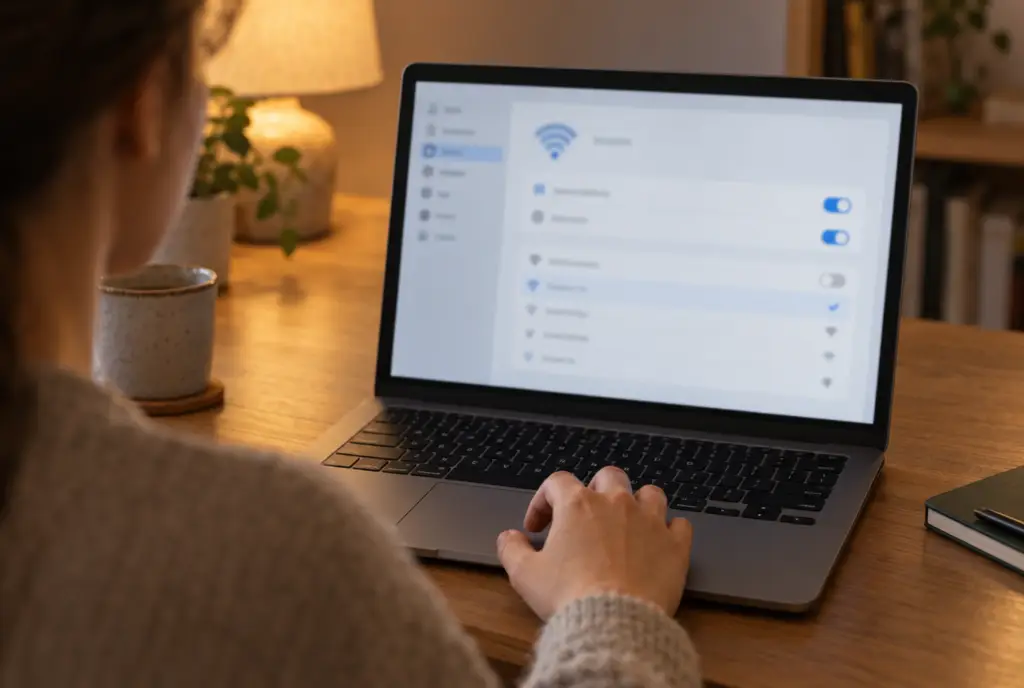
Apple recommends forgetting a network after you change router settings, so the Mac stops using the old ones. Open System Settings > Wi-Fi, scroll down and click Advanced, click the More Options button next to your network, choose Remove From List, then click Forget. Join the network again with its password (Apple: forget a Wi-Fi network).
One side effect to know: since macOS Sequoia 15, forgetting a network also makes the Mac forget the private address it used there, unless you forgot that network less than 24 hours ago (Apple: private Wi-Fi addresses). If your router identifies devices by MAC address, the Mac may look like a new device afterwards. Fix 3 covers that.
Fix 3: Set Private Wi-Fi Address to Fixed for your home network
On macOS Sequoia 15 and later, each network has three options: Off (hardware MAC address), Fixed (private, never rotates), and Rotating (changes every 2 weeks). Your Mac picks Fixed by default on networks with WPA2 or stronger security, and Rotating on networks with weak or no security.
A rotating address breaks routers that use MAC filtering, DHCP reservations, or parental controls tied to a device. Go to System Settings > Wi-Fi, click Details next to your network, and set Private Wi-Fi Address to Fixed. Choose Off only if a network genuinely needs the hardware address. The full walkthrough is in our guide to disabling the Wi-Fi private MAC address on macOS.
Fix 4: Renew the DHCP lease
If the Wi-Fi icon shows a connection but nothing loads, the IP address is often the problem. A restart renews it automatically, but you can do it in seconds:
- Open System Settings > Network.
- Click Wi-Fi, then Details.
- Click TCP/IP, then Renew DHCP Lease, then OK.
These are the steps in Apple’s Renew your IP address from the DHCP server guide. If you renew often, check the router’s lease time in Fix 7.
Fix 5: Update macOS and the router firmware
Apple lists both updates as first steps. On the Mac, open System Settings > General > Software Update. On the router, use the manufacturer’s app or web page, and turn on automatic firmware updates if it offers them, which Apple recommends in its recommended router settings. Firmware updates often fix exactly the kind of compatibility bugs that cause drops with newer Macs.
Fix 6: Check VPN apps, security software and Location Services
Apple notes that VPN clients and software that monitors network connections can block internet access. Quit or pause your VPN, firewall, or “network protection” app and see whether the drops stop. If they do, update or reconfigure that app rather than leaving it off.
Also check System Settings > Privacy & Security > Location Services. Scroll to System Services, click Details, and make sure Networking and wireless is on. Apple says this helps the Mac use the Wi-Fi channels and signal strengths allowed in your country.
Fix 7: Which router settings does Apple recommend?
If you manage the router, these settings from Apple’s recommended settings for Wi-Fi routers (updated July 2026) solve most recurring drops. Back up the router’s settings first, apply the same values to every band and every mesh node, then forget and rejoin the network on your Mac.
| Setting | Apple says | Why it matters for drops |
|---|---|---|
| Network name (SSID) | One name for all bands | Separate 2.4, 5 and 6 GHz names can stop devices connecting reliably |
| Security | WPA3 Personal, or WPA2/WPA3 Transitional | WPA/WPA2 mixed, WEP and TKIP reduce reliability and trigger warnings |
| Hidden network | Disabled | Hiding the name adds no security and can cause privacy warnings |
| MAC address filtering | Disabled | Conflicts with private Wi-Fi addresses |
| Channel | Auto | Lets the router avoid busy channels |
| Channel width | 20 MHz on 2.4 GHz; Auto on 5 and 6 GHz | Narrow 2.4 GHz channels cope better with interference and Bluetooth |
| DHCP | On only on one device | Two DHCP servers cause address conflicts |
| DHCP lease time | 8 hours (home or office) | Balances address reuse and stability |
| NAT | On only on one device | Double NAT (modem plus router) can break access to some services |
| WMM | Enabled | Turning it off hurts reliability, especially for calls and video |
Fix 8: Reduce interference around your desk
Apple’s wireless interference guide lists “doesn’t connect or stay connected” as a classic symptom. The fixes that matter most on a home-office desk:
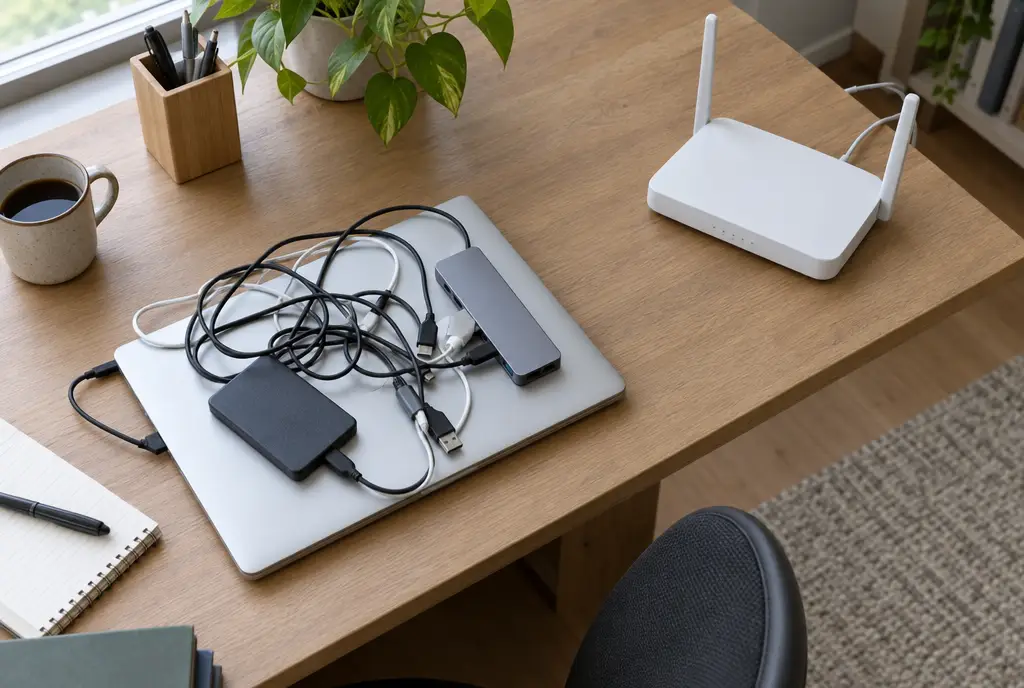
- Move USB 3 and Thunderbolt 3 hubs and drives away from the Mac, never on top of it, and use shielded cables. Turn off USB 3 devices you aren’t using.
- Use 5 GHz where you can, because Bluetooth keyboards, mice and headphones share the 2.4 GHz band with Wi-Fi.
- Get closer to the router, or clear the path. Metal, concrete and plaster block far more signal than wood or glass.
- Keep the Mac away from microwave ovens, cordless phones, wireless cameras and power cables.
If you use a USB-C dock, our USB-C dock guide explains what to look for, including docks with a built-in Ethernet port.
Fix 9: When Wi-Fi itself is the limit, go wired or add mesh
If the Mac still drops after Fixes 1 to 8, and especially if it only happens in one room, the signal is the problem. You have two honest options: plug in a cable at your desk, or extend coverage with mesh.
BEST FIX FOR A FIXED DESK
UGREEN USB-C to 2.5G Ethernet Adapter
- Best for: a MacBook that sits at the same desk every day and needs stable video calls.
- Key specs: USB-C (USB 3.0) to 2.5 Gbps Ethernet, aluminum housing (UGREEN product page).
- Skip it if: your internet plan is under 1 Gbps. The cheaper UGREEN 1 Gbps adapter does the same job. Amazon reviews also mention mixed results on some of the newest MacBooks, so keep the return window in mind.
BEST FIX FOR DEAD ZONES
eero 7 mesh Wi-Fi system
- Best for: homes where the Mac drops Wi-Fi only in certain rooms.
- Key specs: Wi-Fi 7, dual-band 2.4 and 5 GHz, two 2.5 GbE ports per unit, up to 2,000 sq. ft. per unit (eero support).
- Skip it if: the drops happen right next to the router. Coverage is not your problem, so go back to Fixes 3 to 7.
For placement tips before you buy anything, read how to improve Wi-Fi coverage in your house. To plan the whole network, from wiring to guest networks, see our home network setup guide.
Frequently asked questions
Why does my Mac disconnect from Wi-Fi after sleep?
After sleep, the Mac has to rejoin the network and often renew its IP address, so DHCP and private address problems show up first. Renew the DHCP lease (Fix 4), set Private Wi-Fi Address to Fixed (Fix 3), and set the router’s lease time to 8 hours. The “Wake for network access” setting only lets a sleeping Mac wake for shared services such as printers, so changing it does not keep Wi-Fi connected.
Why does my MacBook Air keep disconnecting and reconnecting?
A connect and disconnect loop usually means the Mac keeps switching between bands or access points with different names, or the router rejects its address. Use one network name for all bands, turn off MAC filtering, and forget and rejoin the network.
Should I reset my router?
Restart it first; Apple suggests a restart as a basic fix. A full factory reset erases your settings, so back them up and try Fixes 1 to 7 before resetting.
Will a Wi-Fi 7 router stop the disconnects?
Only if the old router is the cause, for example missing firmware updates or weak coverage. A new router with the wrong settings drops just as often. See Wi-Fi 7 vs Wi-Fi 6E to decide whether an upgrade makes sense.
Final Verdict
Most Macs that keep disconnecting from Wi-Fi need a settings fix, not new hardware. Run Wireless Diagnostics, forget and rejoin the network, set the private address to Fixed, and line your router up with Apple’s recommended settings. Buy an Ethernet adapter or a mesh system only if the drops survive all of that.
Next step: open System Settings > Wi-Fi now and check which Private Wi-Fi Address mode your home network uses. It takes 30 seconds and rules out one of the most common causes.
Affiliate disclosure: This post contains affiliate links. If you purchase through them, I may earn a commission at no extra cost to you. Full disclosure.


