To turn off the private Wi-Fi address on a Mac, open System Settings, click Wi-Fi, click Details next to your network, and set Private Wi-Fi address to Off. The setting is per network, so to make Off the default for every new network, use the Terminal command or the MDM profile below.
In this article
Private Wi-Fi addresses arrived on the Mac with macOS Sequoia 15 and work the same way in macOS Tahoe 26. The steps below follow Apple’s support article and the Mac User Guide; the screenshots are from my own Mac.
What do Off, Fixed and Rotating mean?
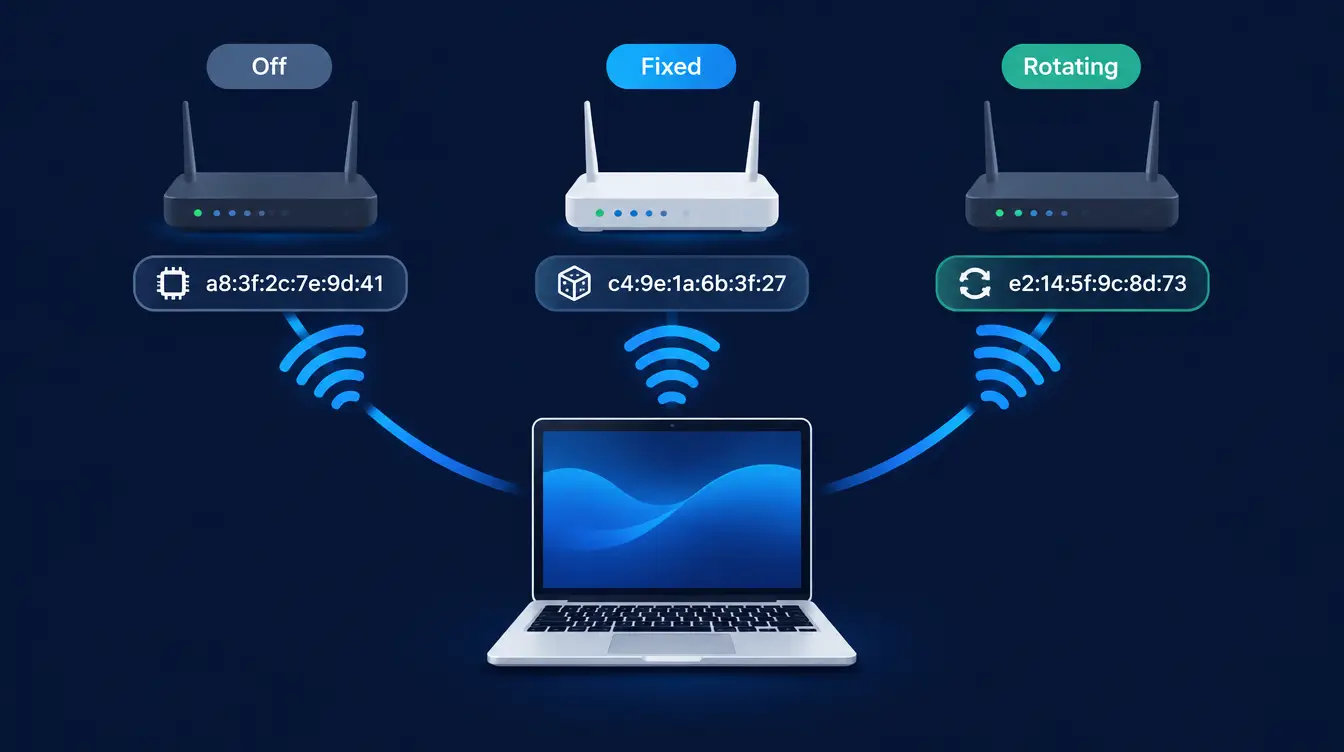
Your Mac can show each Wi-Fi network its real hardware MAC address or a made-up one. Apple offers three modes per network:
| Mode | Address the network sees | Default on |
|---|---|---|
| Off | Your hardware MAC address, the same on every network | Never (you choose it) |
| Fixed | One private address per network that does not rotate | Networks with WPA2 or stronger security |
| Rotating | A private address that changes every 2 weeks | Open or weakly secured networks |
A Fixed address still changes in a few cases: after you erase the Mac or reset network settings, and after you forget the network (unless you rejoin within 24 hours). That is why DHCP reservations based on a Fixed address can suddenly stop matching.
When should you turn the private address off?
Turn it off only on networks you trust, and only when something depends on a stable device address:
- MAC filtering or allow-lists: the router only admits known addresses.
- DHCP reservations and firewall rules: a fixed IP or a device rule is tied to the MAC address.
- Parental controls and device lists: router apps that track devices by MAC see a “new” device after every change.
- Corporate or school networks: network access control that identifies devices by hardware address.
Apple recommends installing the latest software updates first and trying again before you turn the feature off. If your Mac also drops the connection for other reasons, work through our fixes for a Mac that keeps disconnecting from Wi-Fi.
How to turn off private Wi-Fi address in System Settings
- From the Apple menu, choose System Settings.
- Click Wi-Fi in the sidebar.
- Click Details next to the network you are connected to. For a known network you are not connected to, click the More button (three dots) next to its name.
- Open the menu next to Private Wi-Fi address and choose Off.
- Click OK. The Mac reconnects with its hardware address, and the Wi-Fi address line below the menu shows it.


If you only need a stable address for a DHCP reservation and the router does not filter by MAC, Fixed is usually enough and keeps you private on other networks.
How to make Off the default with Terminal
System Settings changes one network at a time. To make new networks join with the hardware address by default, set the PrivateMACAddressModeSystemSetting key to 1 (an integer, not a boolean), as documented by Mac admin Joel Bruner and confirmed in the Jamf community:
sudo defaults write /Library/Preferences/SystemConfiguration/com.apple.airport.preferences.plist PrivateMACAddressModeSystemSetting -int 1Then turn Wi-Fi off and on, or restart the Mac. The change does not apply until Wi-Fi restarts. To restart Wi-Fi from Terminal (replace en0 if your Wi-Fi port has another name):
networksetup -setairportpower en0 off && networksetup -setairportpower en0 onKnow what this key does and does not do:
- It sets the default for networks you join from now on, and for known networks that have no per-network choice saved.
- A network where you already picked Fixed or Rotating keeps that choice. Change those in System Settings.
- If Terminal answers
Operation not permitted, open System Settings > Privacy & Security > Full Disk Access, turn on Terminal, quit and reopen Terminal, then run the command again.
Check the value, and undo it later if you want private addresses back as the default:
sudo defaults read /Library/Preferences/SystemConfiguration/com.apple.airport.preferences.plist PrivateMACAddressModeSystemSetting
sudo defaults delete /Library/Preferences/SystemConfiguration/com.apple.airport.preferences.plist PrivateMACAddressModeSystemSetting
Apple does not document this key, so a future macOS update can change how it behaves. For managed Macs, use a profile instead.
How to turn it off for many Macs with a configuration profile
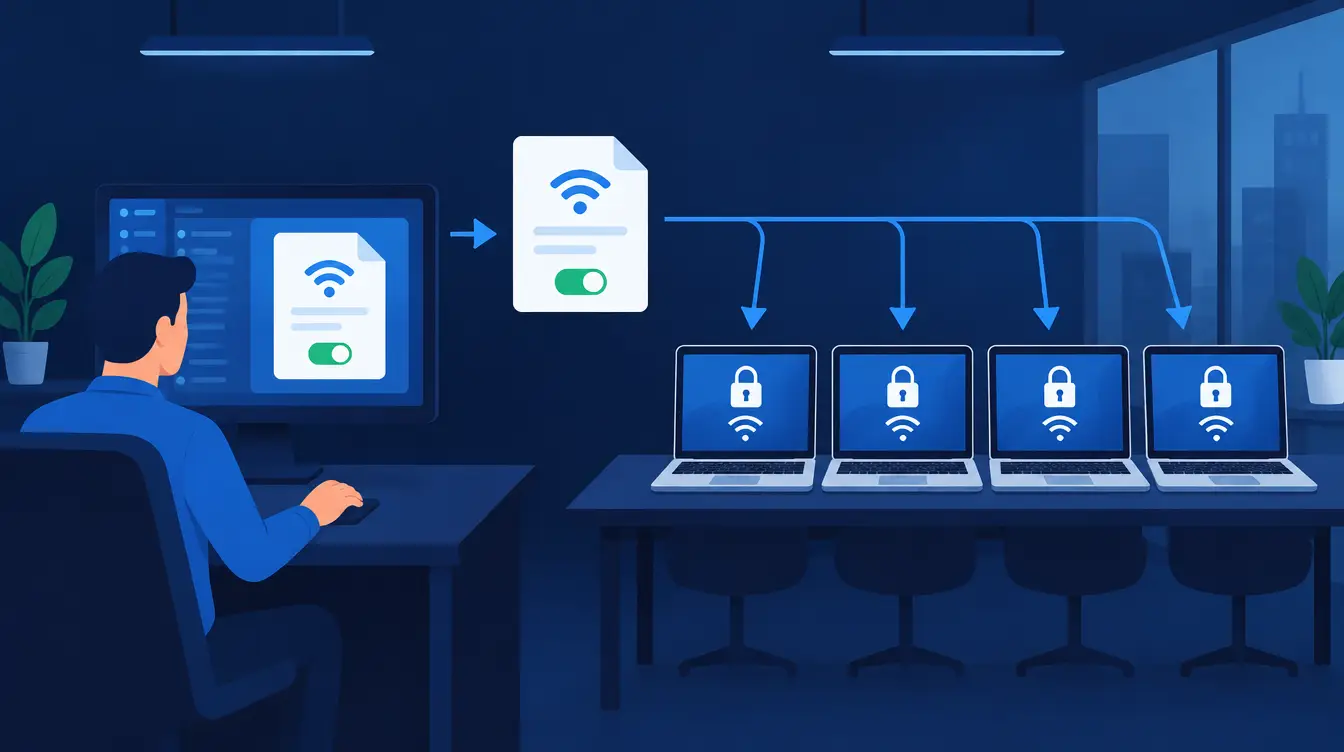
Apple’s supported way for organizations is the Wi-Fi payload (com.apple.wifi.managed) with DisableAssociationMACRandomization set to true. According to Apple’s device management documentation, the key works on macOS 15 and later, iOS 14 and later and iPadOS 14 and later, and turns off the private address for that one network.
- Create a Wi-Fi payload in your MDM (Jamf Pro, Kandji, Intune) or a profile editor.
- Enter the SSID, security type and credentials of the network.
- Tick Disable Association MAC Randomization.
- Deploy the profile through MDM. Only an MDM-installed profile locks the setting; on a manually installed profile, the user can change it back.

Users then see a privacy warning for that network in Settings, which is expected. Apple fixed an issue in iOS 26.6 where users could still change the private address on networks with this key, per Apple’s enterprise release notes.
How to turn off private Wi-Fi address on iPhone and iPad
- Open Settings and tap Wi-Fi.
- Tap the More Info button (i) next to the network. If you are not connected to it, tap Edit first.
- Tap Private Wi-Fi Address and choose Off (on iOS 18 and later; earlier versions have an on/off switch).
Frequently asked questions
Is it safe to turn off private Wi-Fi address?
On your own home or office network, yes. With Off, every network sees the same hardware address, so your device can be tracked across networks. Keep Fixed or Rotating on public Wi-Fi in cafés, hotels and airports.
What does “Private Wi-Fi address is turned off for this network” mean?
It is a privacy warning, not an error. It appears when that network sees your hardware address, either because you set it to Off or because a configuration profile turned it off. The connection works normally.
Should I use Fixed or Rotating?
Use Fixed on networks you trust, so the router keeps recognizing your Mac. Use Rotating on open public networks, where a new address every 2 weeks makes tracking harder.
How do I find my Mac’s real MAC address?
Run networksetup -getmacaddress en0 in Terminal for the hardware address. The Wi-Fi address line in the network’s Details shows the address the current network actually sees.
Does turning off the private address make Wi-Fi faster?
No. It only changes which address the network sees. It fixes problems caused by a changing address, such as a lost DHCP reservation or a blocked device, not slow speeds.
Next Steps for a Stable Mac Connection
Set the private Wi-Fi address to Off only on the networks that need your hardware address, and leave Fixed or Rotating everywhere else. Use the Terminal key for a single Mac you manage yourself, and a configuration profile for a fleet.
If the connection still drops, go through our 9 fixes for a Mac that keeps disconnecting from Wi-Fi, and check the basics in our home network setup guide.