
This post contains affiliate links. If you buy through them, I may earn a commission at no extra cost to you. How this works.
In this article
The home office productivity gadgets worth buying fix a friction you hit every day: a dock that replaces a tangle of cables, a light bar that ends desk glare, a webcam that keeps you framed on calls. Start with the problem, not the product, and skip any gadget your current setup already handles.
The six picks below each solve one specific problem. All of them are research-based picks: specs come from the manufacturer pages linked in each section, checked November 2026, and I note who should skip each one. For how I judge reviews and sources, see how to spot fake reviews.
Quick picks: which gadget fixes which problem?
| Pick | Fixes | Key spec |
|---|---|---|
| CalDigit TS4 | Cable clutter | 18 ports, 98W charging |
| BenQ ScreenBar Halo 2 | Desk lighting | Auto-dims to 500 lx |
| Insta360 Link 2 | Video calls | 4K30, 1/2-inch sensor |
| Logitech MX Master 4 | Mouse fatigue | 8,000 DPI, 70-day battery |
| Belkin UltraCharge Pro | Charger sprawl | Qi2 25W 3-in-1 |
| MacBook Neo | Slow old laptop | A18 Pro, up to 16 h video |
Too many cables at your desk? Get a Thunderbolt dock
If you plug in a monitor, Ethernet, charger and USB devices every morning, one dock turns that into a single cable. The CalDigit TS4 is the reference Thunderbolt 4 dock: 18 ports, 98W charging to the laptop, and 2.5 Gigabit Ethernet. For cheaper options and how to match a dock to your laptop’s ports, see the USB-C dock buying guide.
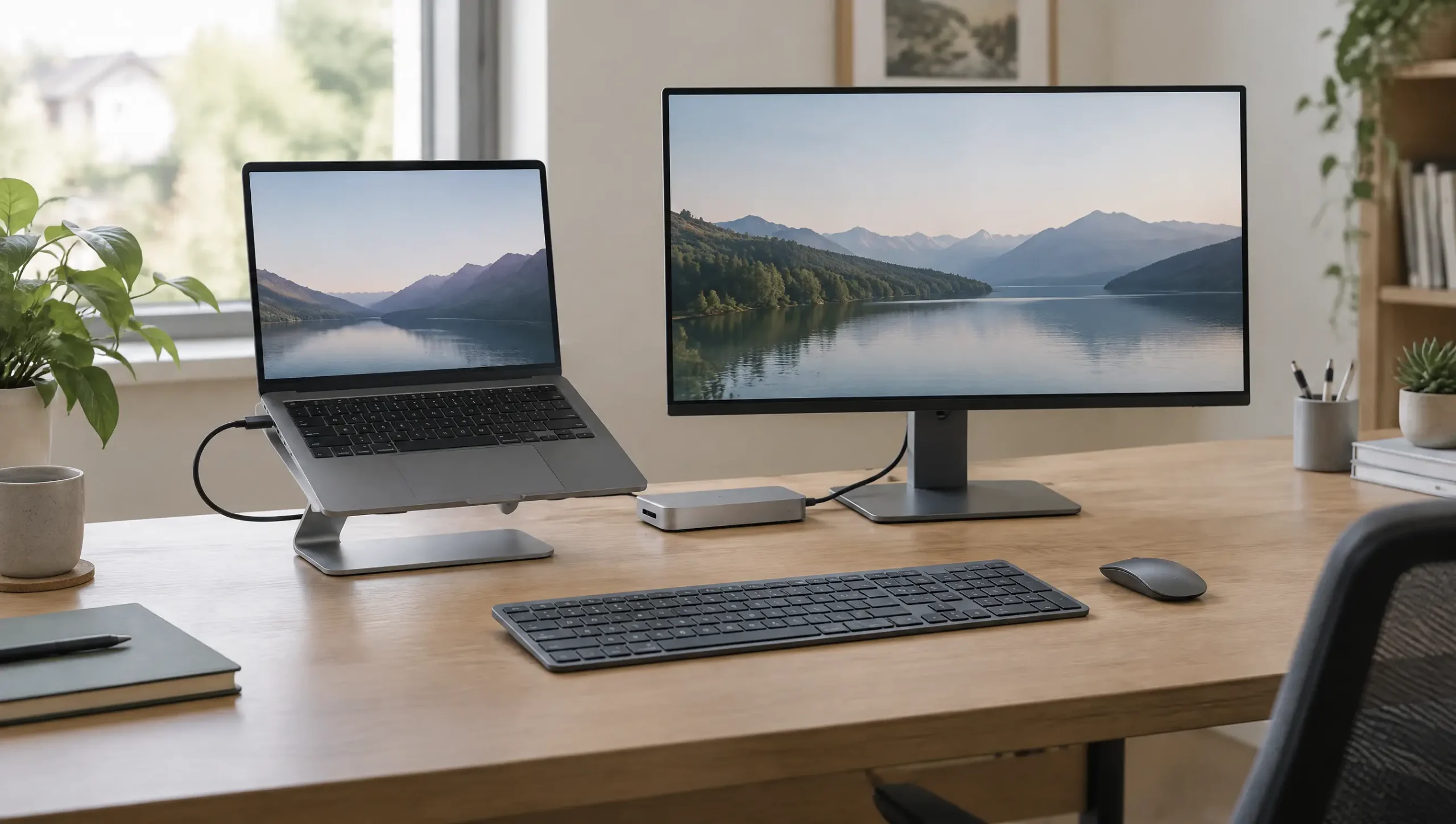
BEST DOCK
CalDigit TS4 Thunderbolt 4 Dock
- Best for: Laptop users with a Thunderbolt 4 or USB4 port who connect several devices every day.
- Key specs: 3x Thunderbolt 4 (40 Gb/s), 5x USB-A and 3x USB-C at 10 Gb/s, 2.5GbE, DisplayPort 1.4, SD and microSD (UHS-II), 98W host charging (CalDigit).
- Skip it if: You only need two or three extra ports. A basic USB-C hub costs far less, and the TS4’s full speed needs a Thunderbolt or USB4 laptop.
Glare or a dim desk? Add a monitor light bar
A desk lamp lights the screen as much as the desk and creates reflections. A monitor light bar clamps on top of the display and aims light down at the desk only. The BenQ ScreenBar Halo 2 adds a backlight behind the monitor and an auto-dimming mode that holds the desk at 500 lux, the working level BenQ cites for office tasks.
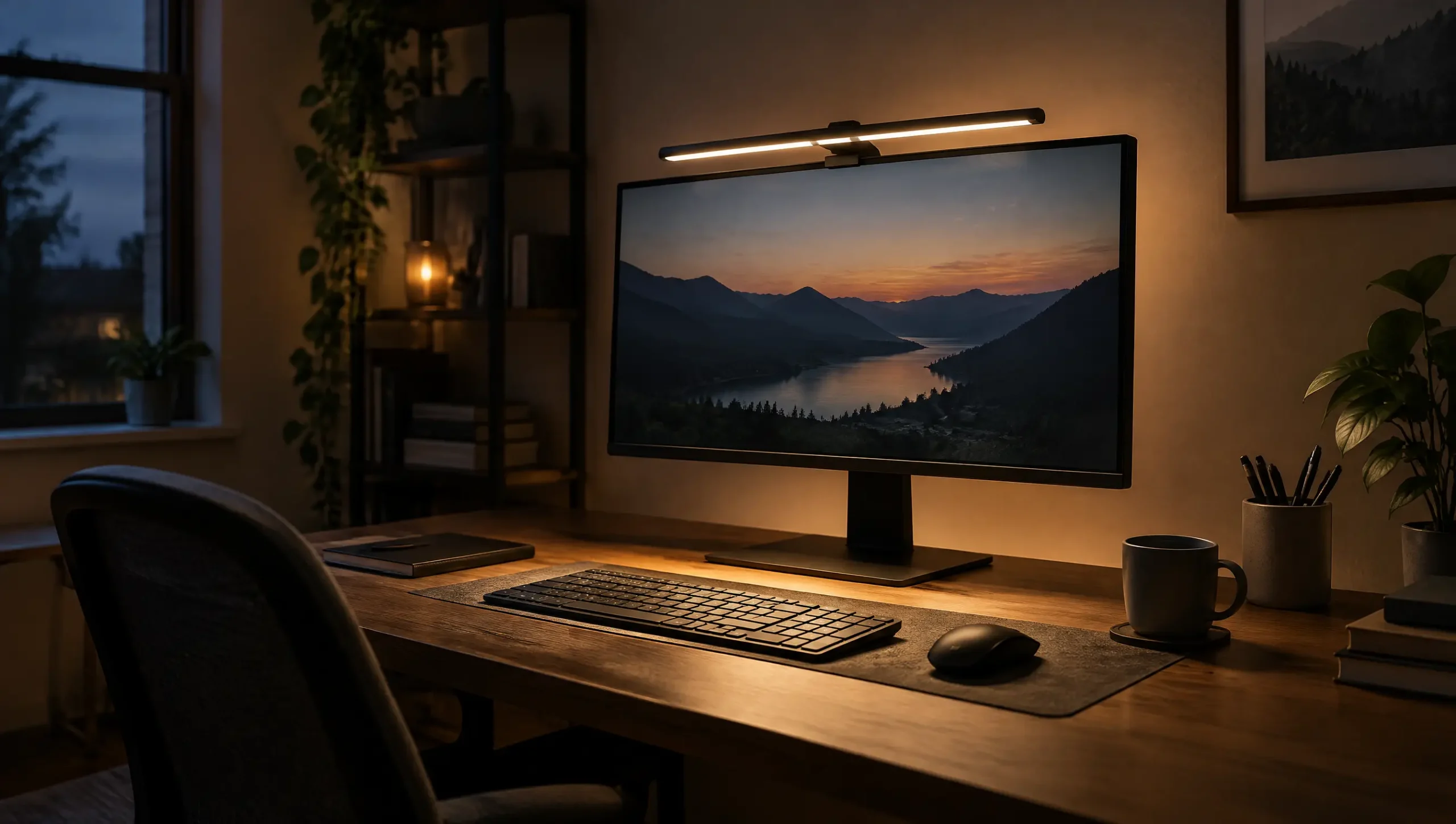
BEST DESK LIGHT
BenQ ScreenBar Halo 2
- Best for: Evening work and dark rooms where the screen is the brightest thing in view.
- Key specs: Front and rear light, 2700K to 6500K, CRI 95, auto-dimming to 500 lx, presence detection, wireless dial; fits monitors 0.43 to 6 cm thick and curves from 1000R to 1800R (BenQ).
- Skip it if: You work on a laptop screen only. It is designed to clamp onto an external monitor.
Look grainy on video calls? Upgrade the webcam
Built-in laptop cameras use tiny sensors, so they turn noisy in normal room light. A larger sensor helps more than a higher resolution number. The Insta360 Link 2 pairs a 1/2-inch sensor with a two-axis gimbal that follows you if you stand up or move to a whiteboard.

BEST WEBCAM
Insta360 Link 2
- Best for: People who present, teach or move around during calls.
- Key specs: 4K at up to 30 fps, 1080p at up to 60 fps, 1/2-inch 8MP sensor, phase-detection autofocus, AI tracking, gesture control; tilts down for privacy when idle (Insta360).
- Skip it if: You sit still on every call: the cheaper Link 2C drops the gimbal. Insta360 also lists reduced support on Intel Macs and older NVIDIA GPUs, so check its compatibility notes first.
Hand or wrist tired by evening? Change the mouse
A full-size, sculpted mouse lets your hand rest instead of gripping. The Logitech MX Master 4 keeps the familiar MX shape and adds a haptic thumb panel you can map to app shortcuts.
BEST MOUSE
Logitech MX Master 4
- Best for: Long spreadsheet, design or coding sessions where shortcuts save time.
- Key specs: Darkfield sensor, 200 to 8,000 DPI, works on glass, Haptic Sense Panel, up to 70 days per charge over USB-C, Logi Bolt USB-C receiver plus Bluetooth, 150 g (Logitech).
- Skip it if: You are left-handed (the shape is right-handed only) or prefer a light, compact mouse for travel.
Three chargers for three devices? Use one 3-in-1 stand
If an iPhone, an Apple Watch and AirPods each have their own cable, a 3-in-1 stand clears the desk and keeps the phone upright for notifications. The Belkin UltraCharge Pro 3-in-1 (WIZ040) is Qi2 25W certified and ships with its own power supply.
BEST CHARGER
Belkin UltraCharge Pro 3-in-1 Magnetic Charging Dock (Qi2 25W)
- Best for: iPhone owners who also wear an Apple Watch.
- Key specs: Qi2 25W for supported iPhones (Belkin lists the iPhone 16 series, iOS 26 or later), up to 15W for iPhone 12 to 15, Apple Watch fast-charging puck, 5W pad for AirPods, 45W power supply included (Belkin).
- Skip it if: You use Android or do not own an Apple Watch: a single Qi2 stand does the job for less.
Laptop the real bottleneck? Consider the MacBook Neo
Accessories cannot fix a laptop that stalls on email, documents and video calls. For that everyday workload, the MacBook Neo is Apple’s entry-level laptop. Check its limits first: memory is fixed at 8GB.
BEST BUDGET LAPTOP
Apple MacBook Neo
- Best for: Writing, browsing, video calls and office apps on a light, long-lasting laptop.
- Key specs: A18 Pro chip, 13-inch 2408 x 1506 display, 8GB unified memory, 256GB or 512GB SSD, up to 16 hours video streaming, 2.7 lb, one USB 3 and one USB 2 USB-C port plus headphone jack (Apple).
- Skip it if: You run virtual machines, large photo or video projects, or many heavy apps at once. Its ports are USB 3 and USB 2, not Thunderbolt, so pair it with a simple USB-C hub instead of the TS4.
Which gadget should you buy first?
Buy against the problem that costs you the most time each day:
- You re-plug cables every morning: start with the dock.
- Your eyes feel tired after evening work: start with the light bar.
- You present or teach on video: start with the webcam.
- Your hand aches by the end of the day: start with the mouse.
- Your laptop itself is slow: fix that first, because no accessory will.
When should you skip the upgrade?
If your current setup does not cause a daily problem, keep it. A working older mouse, a cheap hub that covers your ports, or a laptop that still handles your apps are all fine. Before you spend, run the purchase through the 7 checks before you buy any gadget: total cost, update window, warranty and return terms.
Frequently asked questions
What gadgets increase productivity when working from home?
The ones that remove a repeated friction: a dock for one-cable connections, good desk lighting, a webcam with a larger sensor for calls, and an ergonomic mouse with programmable buttons. Pick the one that matches the problem you hit most often.
Is a docking station worth it for a laptop?
Yes, if you connect three or more devices at the same desk every day. A Thunderbolt dock such as the CalDigit TS4 replaces them with one cable and charges the laptop at up to 98W. If you only need one or two extra ports, a simple USB-C hub is enough.
Do monitor light bars help with eye strain?
They light the desk without adding reflections to the screen, which makes long sessions in dim rooms more comfortable for many people. They are not a medical fix: if eye strain persists, see an eye care professional.
Do I need a 4K webcam for video calls?
Not for most calls. Sensor size, lighting and framing make a bigger visible difference than the resolution label. A 4K webcam such as the Insta360 Link 2 helps most when you crop, zoom or record.
Is the MacBook Neo good for working from home?
For office apps, browsing and video calls, yes: Apple rates it at up to 16 hours of video streaming. Its 8GB of memory cannot be upgraded, so choose a higher-end Mac for heavy multitasking or creative work.
Final Verdict
Buy one gadget for one problem. For most home offices the biggest single upgrade is the dock (if you plug in several devices daily) or the light bar (if you work in the evening). Add the webcam if you present on video, and replace the laptop only if it is the real bottleneck.
Next step: map your current setup against the problems above, then check the USB-C dock guide if a dock is your first buy.
Affiliate disclosure: This post contains affiliate links. If you purchase through them, I may earn a commission at no extra cost to you. Full disclosure.